Failure guide
Elephant Foot Fix
Elephant Foot Fix starts with line shape and plate area, not a full profile reset. Use one small patch to decide whether the next move is Z offset, cleaning, mesh, nozzle seating, or release risk.
Independent third-party notes. Verify firmware, heater, electrical, and vendor-specific work against official documentation for your exact printer.
Quick Readout
Elephant Foot Fix starts with line shape and plate area, not a full profile reset. Use one small patch to decide whether the next move is Z offset, cleaning, mesh, nozzle seating, or release risk.
Pick what you see
Pick the Elephant Foot Fix branch
Choose the visible evidence or log clue that matches first. The card below keeps the next move to one test and one variable.
First-layer lines are separate, round, or easy to lift.
- Likely cause
- Nozzle is too high, plate is contaminated, or bed temperature is too low.
- First test
- Run the five-patch first-layer test after washing the plate.
- Change only this
- Lower Z offset in 0.02 mm steps or clean the plate, not both.
- Parameter range
- 0.02 mm steps; rarely more than 0.10 mm from known-good
- Stop when
- Lines touch without ridges or scraping.
- Verify with
- Patch line shape and corner adhesion.
Pick the exact path
Most failed fixes go wrong when they start from the wrong branch.
Use this when the failure appears on FDM printers or the closest matching setup.
- First test
- Run the five-patch first-layer test after washing the plate.
- Change only this
- Lower Z offset in 0.02 mm steps or clean the plate, not both.
- Stop when
- The repeat test clearly improves or points to a different branch.
Use this if the symptom started after a nozzle, spool, plate, slicer, firmware, or maintenance change.
- First test
- Restore the last known-good context or isolate only the recent change with one small repeat test.
- Change only this
- Undo or isolate the recent change; do not retune the whole profile.
- Stop when
- The repeat test clearly improves or points to a different branch.
Use this when the first proof test looks the same after one safe variable change.
- First test
- Repeat the same test once to rule out a bad slice or one-off print.
- Change only this
- Switch branch instead of stacking another setting.
- Stop when
- The repeat test clearly improves or points to a different branch.
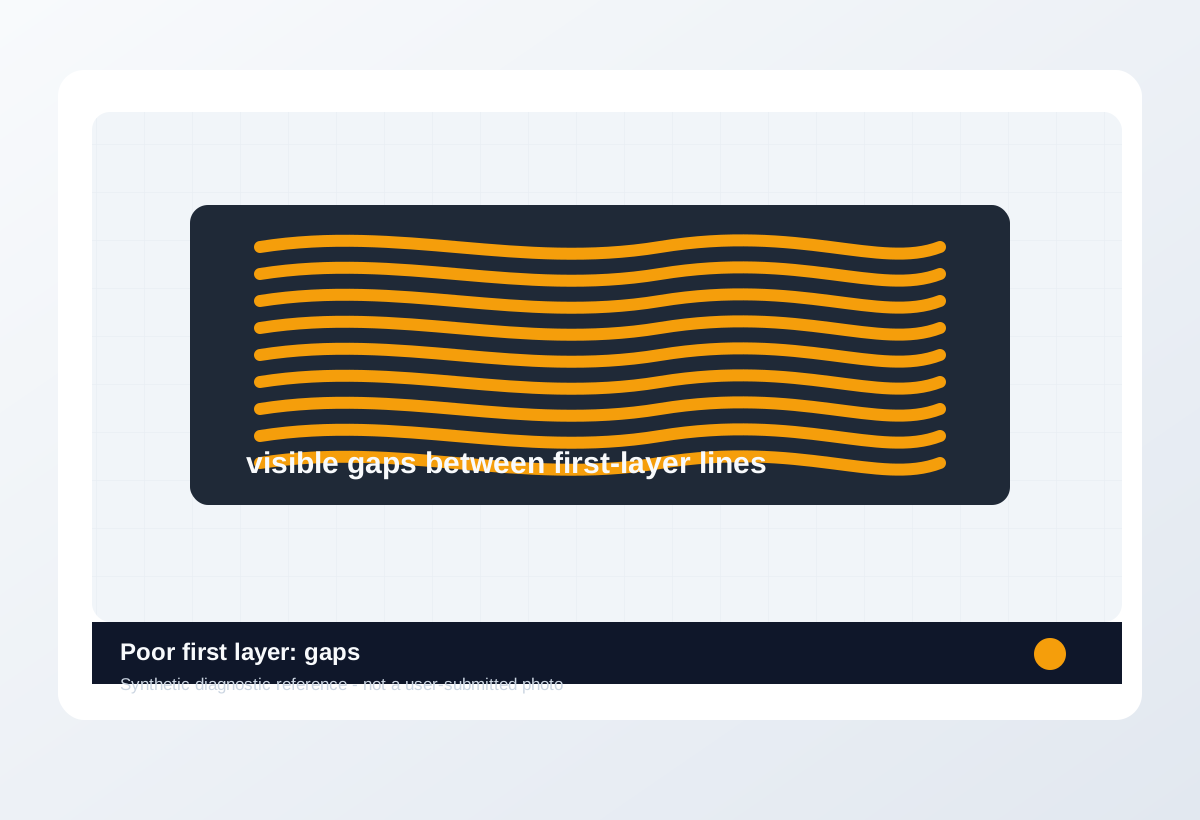
Visual diagnosis
Match the visible pattern before changing settings.
Synthetic diagnostic reference or structured visual guide; confirm with the page test before treating it as proof.
- Elephant Foot Fix repeats on the same printer, material, or print condition.
- The visible pattern changes when one branch variable changes.
- The symptom can be reproduced with a small test instead of a full model.
- The printer is showing a firmware, heater, or electrical safety warning.
- You are copying numbers from a different printer as final values.
- Several slicer values have already been changed without a repeatable test.
- Wet filament fuzz
- Warping after the first few layers
- Extrusion flow errors that start above layer one
- Where the defect starts and whether it repeats at the same location.
- Whether the texture is smooth, rough, lifted, thin, blobby, or shifted.
- What changed recently: material, nozzle, plate, firmware, slicer, or printer maintenance.
- The exact slicer value that caused it.
- Whether the spool is dry, the nozzle is worn, or the config is correct.
- That a purchase is needed before the same small test is repeated.
Original visual references
Synthetic examples for fast pattern matching.
These are Print Fixes synthetic diagnostic references, not user-submitted photos. Use them to compare shape and location, then confirm with the test or log evidence on this page.
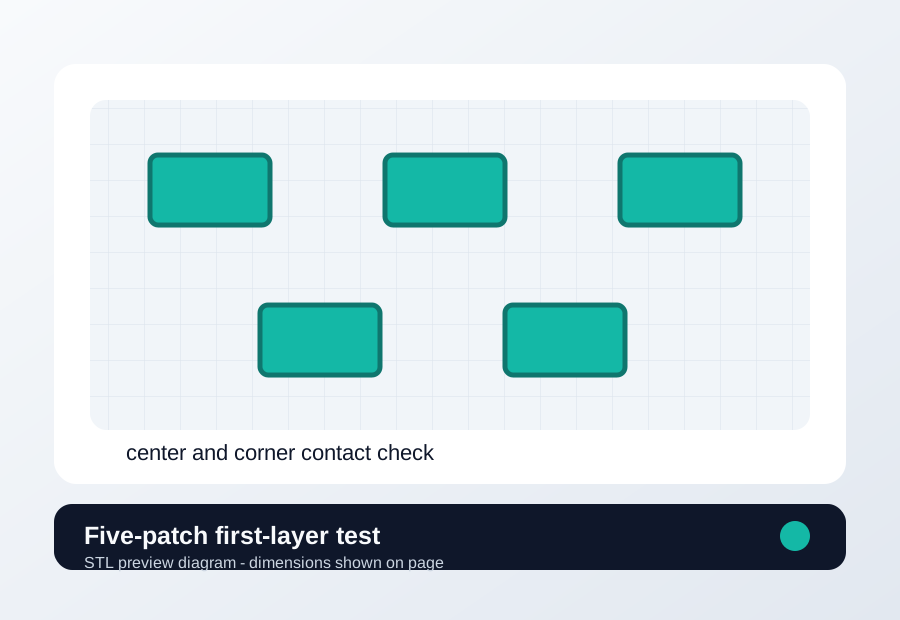
Download a quick test
First layer five-patch test
Use when Z offset, plate cleanliness, or bed area is part of the diagnosis.
- File
- STL
- Typical time
- 8-12 min
- Material
- Same material that failed
- Dimensions
- 120 x 90 x 0.3 mm
- Footprint
- 120 x 90 mm
- Height
- 0.3 mm
- Layer height
- 0.20 mm unless the page says first-layer only
- Infill
- 0%
- Walls
- 2
- Supports
- Off
- Speed
- Use current profile for baseline, then change only the proven variable
- Material and spool
- Nozzle size
- Bed surface
- Every slicer value except the one variable being tested
- First-layer height only
- No brim for the baseline
- Keep bed temperature unchanged for the first comparison
Recommended Checks
0/4 doneVerification
- Repeat the same test model or the same problem area after the change.
- Compare before and after photos, print time, surface quality, and failure location.
- Keep the previous profile until the new value passes at least two similar prints.
- For firmware or heater-related issues, confirm logs stay clean after a safe heat or motion test.
Field guide
Follow the branch that matches your print
First-layer lines are separate, round, or easy to lift.
- Likely cause
- Nozzle is too high, plate is contaminated, or bed temperature is too low.
- First test
- Run the five-patch first-layer test after washing the plate.
- Change only this
- Lower Z offset in 0.02 mm steps or clean the plate, not both.
- Verify with
- Patch line shape and corner adhesion.
- Stop when
- Lines touch without ridges or scraping.
The nozzle plows ridges, leaves transparent patches, or scratches the surface.
- Likely cause
- Z offset is too low or the nozzle/bed contact changed.
- First test
- Raise Z offset by 0.02 mm and repeat one patch.
- Change only this
- Change only Z offset.
- Verify with
- Same patch, same plate area.
- Stop when
- Ridges disappear while adhesion remains.
Center works but one corner or side fails differently.
- Likely cause
- Mesh, gantry, plate seating, or local plate damage.
- First test
- Move the same patch to two bed areas.
- Change only this
- Change only mesh/tilt/plate seating after the location test.
- Verify with
- Patch location comparison.
- Stop when
- The failure no longer follows one bed area.
The failure started after a nozzle, hotend, plate, or profile change.
- Likely cause
- The recent change moved nozzle height, surface behavior, or slicer baseline.
- First test
- Undo or isolate the recent change with one patch.
- Change only this
- Change only the variable touched during maintenance.
- Verify with
- Before/after patch photo.
- Stop when
- The patch returns to known-good line shape.
PETG or another material bonds too aggressively or damages PEI.
- Likely cause
- Release risk, too much squish, hot bed, or wrong plate surface.
- First test
- Let the plate cool fully and run a small release patch.
- Change only this
- Change only release layer, Z, or bed temperature.
- Verify with
- Release force and bottom surface.
- Stop when
- Part releases without tearing coating.
Concrete Parameter Range
| Setting | Start | Range | Change when | Stop when | Too far looks like |
|---|---|---|---|---|---|
| Z offset | Known-good value | 0.02 mm steps; rarely more than 0.10 mm from known-good | Lines are separated, ridged, or the nozzle was changed | Patch lines touch without scraping | Transparent ridges, nozzle marks, or poor release |
| First-layer speed | Current profile | 20-30 mm/s troubleshooting range | Lines do not settle or corners lift early | Patch lays down consistently | Too slow can overheat small details or hide flow issues |
| Bed temperature | Material baseline | PLA 55-65 C, PETG 70-85 C, ASA/ABS 90-110 C | Adhesion or release branch points to bed heat | Adhesion improves without over-bonding | PETG over-adhesion or elephant foot |
| Plate cleaning | Current state | Dish soap wash, rinse, dry; avoid fingerprint test contamination | Failure follows plate area or adhesion suddenly changed | Patch behavior becomes repeatable | Excess chemicals or abrasive cleaning damage surface |
Material / Machine Differences
Wrong Turns
Stop tuning when
Do not keep chasing perfection after the signal is clear.
- The same small test improves after one documented change.
- The symptom turns into a different failure family; switch branches instead of stacking edits.
- A safety, heater, wiring, or firmware warning appears; stop printing and use the safe diagnostic path.
Common setups
Jump to the branch that matches your machine or material
Copy before changing more settings
Elephant Foot Fix diagnostic brief
Fill this out after the first test so the next branch is based on evidence, not memory. The useful case is the one where only one variable changed.
Page: Elephant Foot Fix
Printer:
Slicer:
Firmware:
Material / brand / color:
Nozzle size / material:
Bed surface:
Exact symptom or error text:
Recent change:
First test run:
One variable changed:
Result:
Next branch:Still not matching?
Jump to the next likely diagnosis
Problem Pattern
Elephant Foot Fix is useful when the defect is visible on the part and you need to decide whether the cause is material, surface, nozzle, motion, or slicer profile. The page is ordered so the fastest reversible check comes before bigger changes.
Likely Causes
- Nozzle is too close to the bed or the first layer is over-squished.
- Bed temperature or chamber heat keeps the bottom layers soft for too long.
- Initial layer flow or line width is too high for the part tolerance.
- The model has sharp lower edges that need a small chamfer or elephant-foot compensation.
Print Context
- Page type
- symptom fix
- Best first move
- Reproduce the issue on a small test, then change one variable.
After the test
Use the result, do not keep changing random settings.
If one check clearly changes the print, repeat that exact test once before moving on. If nothing changes, switch diagnosis instead of stacking more slicer edits.
Only after the evidence points here
Parts and supplies for the proven branch
Plate cleaning and release kit
Wash the plate, print the same first-layer patch in two bed areas, then compare release and line shape.
- Buy signal
- The failure follows a scratched, polished, contaminated, or PETG-sensitive surface after Z offset is already sane.
- Skip if
- The same patch fails in every area before cleaning or Z offset is verified.
- Save evidence
- Bottom photo, plate-area photo, material, bed temperature, and whether the patch moved with the plate area.
Clean first, then replace or add release only if the failure follows the plate surface.
- PEI-safe cleaner or dish soap workflow
- Release layer only for PETG-risk surfaces
- Replacement sheet that matches your printer size and magnet system
- A new plate for a dirty plate
- Release agent for PLA that already will not stick
Filament dryer or dry box
Print the same small stringing or surface test before and after a controlled dry cycle, without changing slicer values.
- Buy signal
- Popping, steam marks, rough surface, weak layers, or fine hairing improves on the same spool after drying.
- Skip if
- The spool prints clean after a simple temperature step or seam move.
- Save evidence
- Before/after photo, material, drying temperature/time, room humidity if known, and unchanged slicer settings.
Drying is a purchase only when moisture signs survive one controlled slicer change.
- Adjustable temperature
- Fan circulation
- Spool clearance for the material you use
- Print-while-drying path if TPU/PETG stays loaded
- Passive storage box for a spool that is already wet
- A dryer purchase when a 5 C temperature step fixed the stringing
Nozzle and cleaning kit
Run a hot extrusion or cold-pull check, then print a small flow wall with the same filament and temperature.
- Buy signal
- Extrusion curls, skips, or stays inconsistent after cleaning, or a brass nozzle has seen abrasive filament.
- Skip if
- The problem is only first-layer Z, bed mesh, or wet filament.
- Save evidence
- Free-air extrusion photo, cold-pull result, nozzle size/material, filament type, and whether flow changed after cleaning.
Replace the nozzle only after the extrusion path test makes the blockage or wear visible.
- Correct nozzle thread and length
- Brass for normal PLA/PETG
- Hardened steel or similar only for abrasive filaments
- Cleaning needles sized for the nozzle
- Hardened nozzles as a first-layer fix
- Random nozzle packs that do not match the hotend
Print Fixes may earn from qualifying purchases when commerce links are configured. Diagnostic steps stay independent: buy only when the failure evidence points to the part.
Warnings
- Do not fix elephant foot by making the whole print under-extrude.
- Too high a Z offset can turn elephant foot into poor adhesion.
- Dimensional parts need measurement; photos alone can be misleading.
- A print that clearly shows elephant foot, especially if the same failure repeats.
- You want one next move instead of five profile edits.
- The printer is showing a firmware, heater, or electrical safety warning.
- You are copying numbers from a different printer as final values.
More traps to avoid
- Changing several slicer settings at once and losing the actual cause.
- Ignoring filament condition or bed cleanliness while tuning advanced values.
- Keeping one global profile for different materials, brands, colors, and nozzle sizes.
Bench Note
Page: Elephant Foot Fix
Printer / firmware:
Slicer profile:
Filament brand and material:
Nozzle size:
Bed surface:
Recent changes:
Result to compare next:
FAQ
What should I check first for Elephant Foot fix?
Start with the fastest physical cause you can confirm: surface condition, filament state, nozzle path, motion hardware, or the last profile change. Then run the same small test again.
Should I change slicer settings first?
Only after the physical checks make sense. Slicer changes are useful when they are isolated and verified with the same model or failure area.
When should I buy a replacement part?
Buy after a repeatable test points to wear, damage, missing drying, plate incompatibility, or a nozzle/material mismatch.