Failure guide
Under Extrusion Fix
The printer is laying down too little plastic: thin walls, gaps, weak infill, or clicking. Prove the nozzle and extruder can feed before raising flow.
Independent third-party notes. Verify firmware, heater, electrical, and vendor-specific work against official documentation for your exact printer.
Start here
The hotend or extruder cannot feed the requested plastic volume consistently.
The printer is laying down too little plastic: thin walls, gaps, weak infill, or clicking. Prove the nozzle and extruder can feed before raising flow.
- Check first
- Unload, cut the filament tip, reload, and extrude into free air while watching for a straight consistent strand.
- Change only this
- Clear the path or lower speed before increasing flow percentage.
- Verify with
- A single-wall cube with consistent walls and no extruder clicking.
- Time
- 5 min setup
- Risk
- Medium
- Needs purchase
- Maybe, if the nozzle or drive gear is worn or blocked.
Pick what you see
Pick the Under Extrusion Fix branch
Choose the visible evidence or log clue that matches first. The card below keeps the next move to one test and one variable.
Lines are thin, broken, or missing across walls/infill.
- Likely cause
- Partial clog, low temperature, path drag, or volumetric limit.
- First test
- Extrude into free air, then print the single-wall flow box.
- Change only this
- Clear path or lower speed before raising flow.
- Parameter range
- 5 C steps
- Stop when
- Walls become consistent without clicking.
- Verify with
- Free-air strand and wall box.
Pick the exact path
Most failed fixes go wrong when they start from the wrong branch.
Use this when the failure appears on FDM printers or the closest matching setup.
- First test
- Extrude into free air, then print the single-wall flow box.
- Change only this
- Clear path or lower speed before raising flow.
- Stop when
- The repeat test clearly improves or points to a different branch.
Use this if the symptom started after a nozzle, spool, plate, slicer, firmware, or maintenance change.
- First test
- Restore the last known-good context or isolate only the recent change with one small repeat test.
- Change only this
- Undo or isolate the recent change; do not retune the whole profile.
- Stop when
- The repeat test clearly improves or points to a different branch.
Use this when the first proof test looks the same after one safe variable change.
- First test
- Repeat the same test once to rule out a bad slice or one-off print.
- Change only this
- Switch branch instead of stacking another setting.
- Stop when
- The repeat test clearly improves or points to a different branch.
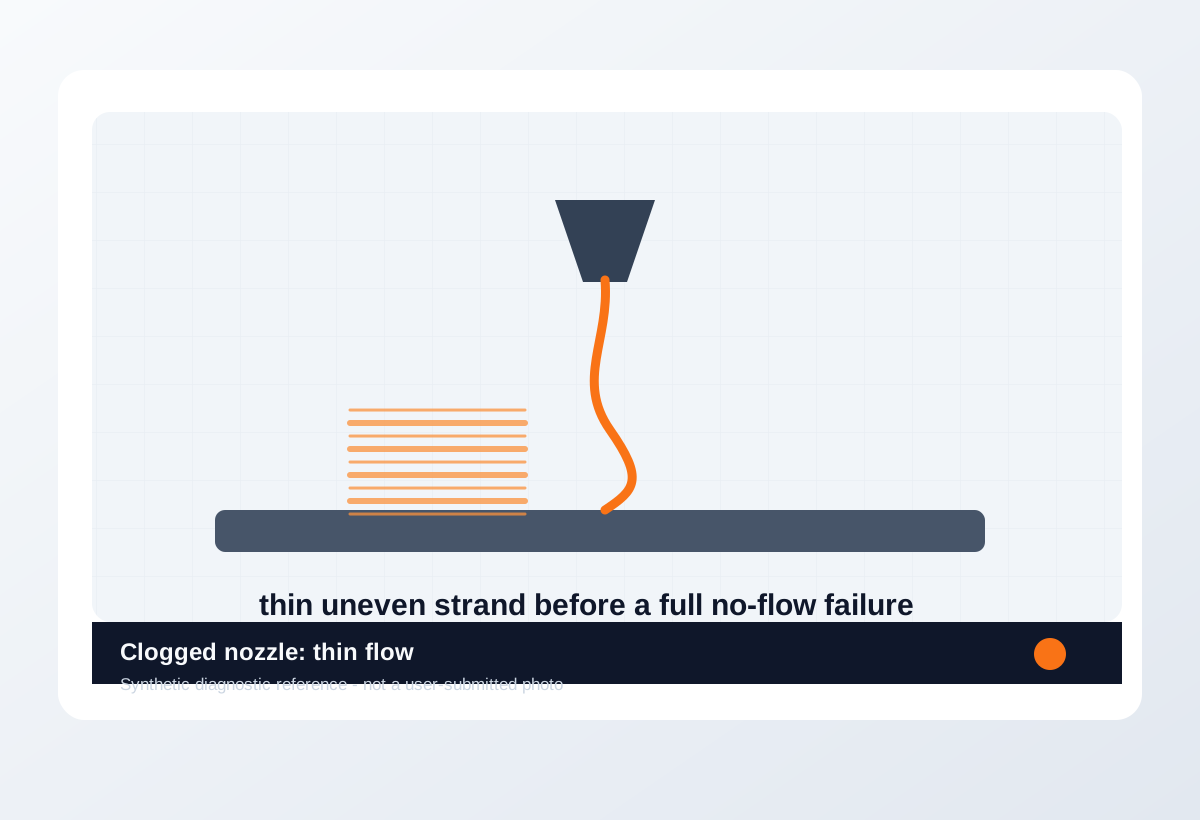
Visual diagnosis
Match the visible pattern before changing settings.
Synthetic diagnostic reference or structured visual guide; confirm with the page test before treating it as proof.
- Lines look skinny or broken instead of touching.
- Top surfaces have gaps that never close.
- The extruder clicks, grinds, or leaves dust on the filament.
- The printer is showing a firmware, heater, or electrical safety warning.
- You are copying numbers from a different printer as final values.
- Several slicer values have already been changed without a repeatable test.
- Wet filament roughness
- Too-low Z offset scraping
- Over-aggressive retraction causing gaps
- Where the defect starts and whether it repeats at the same location.
- Whether the texture is smooth, rough, lifted, thin, blobby, or shifted.
- What changed recently: material, nozzle, plate, firmware, slicer, or printer maintenance.
- The exact slicer value that caused it.
- Whether the spool is dry, the nozzle is worn, or the config is correct.
- That a purchase is needed before the same small test is repeated.
Original visual references
Synthetic examples for fast pattern matching.
These are Print Fixes synthetic diagnostic references, not user-submitted photos. Use them to compare shape and location, then confirm with the test or log evidence on this page.
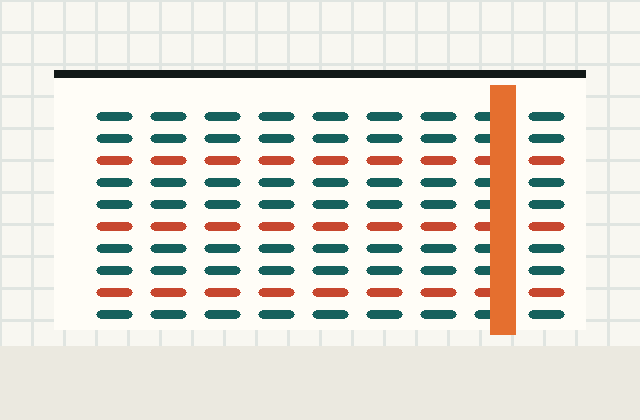
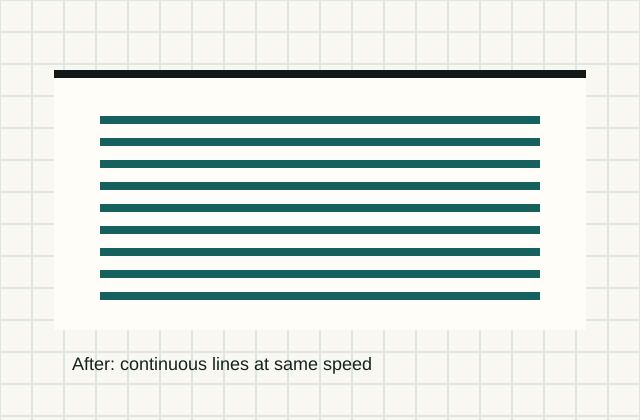
Before / after
Compare one small test, not a whole print.
Use the same small test before and after the change so the comparison means something.
Download a quick test
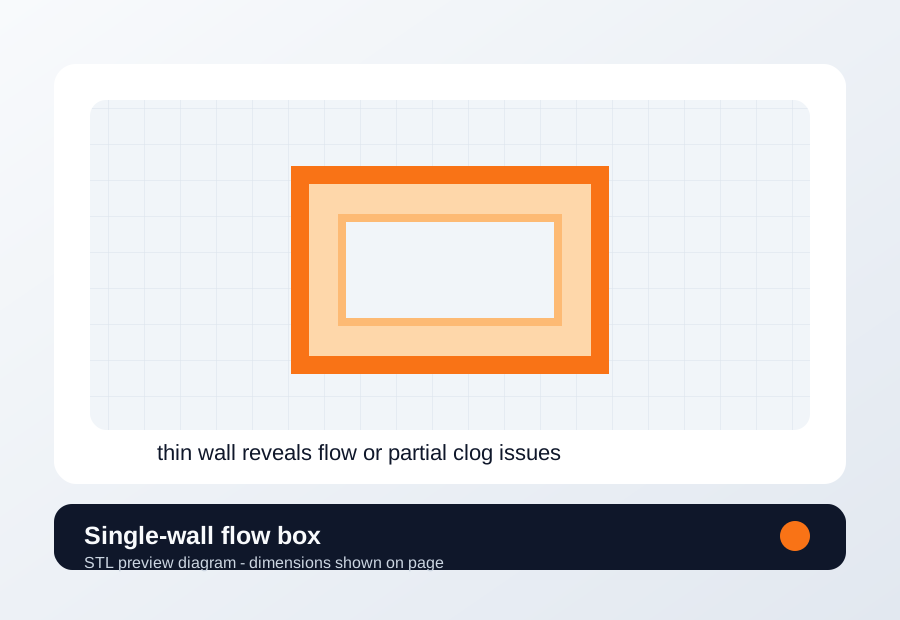
Single-wall flow box
Use when extrusion consistency, nozzle condition, flow rate, or volumetric limit is the active branch.
- File
- STL
- Typical time
- 10-15 min
- Material
- Same material and nozzle that failed
- Dimensions
- 35 x 35 x 25 mm
- Footprint
- 35 x 35 mm
- Height
- 25 mm
- Layer height
- 0.20 mm unless the page says first-layer only
- Infill
- 10-15%
- Walls
- 1
- Supports
- Off
- Speed
- Use current profile for baseline, then change only the proven variable
- Material and spool
- Nozzle size
- Bed surface
- Every slicer value except the one variable being tested
- One wall
- Zero infill
- Keep nozzle temperature unchanged for the first run
Recommended Checks
0/4 doneVerification
- Free-air extrusion forms a smooth strand with no clicking or repeated thinning.
- Single-wall thickness is consistent around the cube.
- Top surfaces close without gaps at the same speed and temperature.
Field guide
Follow the branch that matches your print
Lines are thin, broken, or missing across walls/infill.
- Likely cause
- Partial clog, low temperature, path drag, or volumetric limit.
- First test
- Extrude into free air, then print the single-wall flow box.
- Change only this
- Clear path or lower speed before raising flow.
- Verify with
- Free-air strand and wall box.
- Stop when
- Walls become consistent without clicking.
Extruded filament curls hard at the nozzle or sputters.
- Likely cause
- Nozzle obstruction, worn nozzle, or contaminated path.
- First test
- Run a cold pull or clean/nozzle check at correct temperature.
- Change only this
- Change only nozzle/path cleaning.
- Verify with
- Free-air extrusion photo.
- Stop when
- Strand exits straight and consistent.
Top surface is rough, raised, or blobby rather than under-filled.
- Likely cause
- Flow too high, seam pressure, heat, or pressure advance.
- First test
- Print one single-wall box before reducing flow.
- Change only this
- Change only flow or pressure setting after wall evidence.
- Verify with
- Wall thickness and top surface.
- Stop when
- Top smooths without under-extrusion.
Carbon fiber, glow, wood, or filled filament was used on brass.
- Likely cause
- Nozzle wear may have changed extrusion width.
- First test
- Compare extrusion with a known-good nozzle if cleaning fails.
- Change only this
- Change only nozzle condition/material.
- Verify with
- Same wall box after nozzle change.
- Stop when
- Line width returns to expected value.
Slow prints pass but fast sections go thin or click.
- Likely cause
- Hotend volumetric flow or extruder grip limit.
- First test
- Lower speed/volumetric limit for one repeat.
- Change only this
- Change only speed or max volumetric flow.
- Verify with
- Same wall or representative section.
- Stop when
- Extrusion stabilizes without excess heat.
Concrete Parameter Range
| Setting | Start | Range | Change when | Stop when | Too far looks like |
|---|---|---|---|---|---|
| Nozzle temperature | Material baseline | 5 C steps | Free-air extrusion is thin, curled, rough, or clicking | Strand exits straight and consistent | Stringing, weak surface, or heat creep |
| Volumetric flow / speed | Current profile | Reduce 10-20% for proof | Fast sections under-extrude but slow sections pass | Single-wall test stabilizes | Unnecessarily slow print after hardware issue is solved |
| Flow ratio | Known calibrated value | 1-2% steps only after path is clear | Wall measurement proves flow mismatch | Wall and top surface match expected result | Overfilled seams or weak/gappy walls |
| Nozzle condition | Current nozzle | Clean, cold pull, or replace after evidence | Extrusion stays curled/thin after heat/path checks | Free-air strand becomes straight | Replacing nozzle for Z offset or wet filament |
Material / Machine Differences
Wrong Turns
Stop tuning when
Do not keep chasing perfection after the signal is clear.
- The same small test improves after one documented change.
- The symptom turns into a different failure family; switch branches instead of stacking edits.
- A safety, heater, wiring, or firmware warning appears; stop printing and use the safe diagnostic path.
Common setups
Jump to the branch that matches your machine or material
Copy before changing more settings
Under Extrusion Fix diagnostic brief
Fill this out after the first test so the next branch is based on evidence, not memory. The useful case is the one where only one variable changed.
Page: Under Extrusion Fix
Printer:
Slicer:
Firmware:
Material / brand / color:
Nozzle size / material:
Bed surface:
Exact symptom or error text:
Recent change:
First test run:
One variable changed:
Result:
Next branch:Still not matching?
Jump to the next likely diagnosis
Problem Pattern
Under extrusion shows as missing material, not just ugly texture. Free-air extrusion may come out thin, curl hard, stop, or trigger clicking if the path is restricted.
Likely Causes
- Partial nozzle clog, heat creep, or debris restricts flow.
- Extruder gear is dirty, slipping, tensioned poorly, or grinding the filament.
- Print speed or volumetric flow is too high for the hotend and material.
- Nozzle temperature is too low for the material, color, or nozzle size.
Print Context
- Applies to
- Bowden, direct drive, PLA, PETG, TPU, hardened and brass nozzles
- Best first move
- Confirm free-air extrusion before adjusting slicer flow.
- Do not start with
- Large flow increases that hide a clog or slipping extruder.
After the test
Use the result, do not keep changing random settings.
If one check clearly changes the print, repeat that exact test once before moving on. If nothing changes, switch diagnosis instead of stacking more slicer edits.
Only after the evidence points here
Parts and supplies for the proven branch
Plate cleaning and release kit
Wash the plate, print the same first-layer patch in two bed areas, then compare release and line shape.
- Buy signal
- The failure follows a scratched, polished, contaminated, or PETG-sensitive surface after Z offset is already sane.
- Skip if
- The same patch fails in every area before cleaning or Z offset is verified.
- Save evidence
- Bottom photo, plate-area photo, material, bed temperature, and whether the patch moved with the plate area.
Clean first, then replace or add release only if the failure follows the plate surface.
- PEI-safe cleaner or dish soap workflow
- Release layer only for PETG-risk surfaces
- Replacement sheet that matches your printer size and magnet system
- A new plate for a dirty plate
- Release agent for PLA that already will not stick
Filament dryer or dry box
Print the same small stringing or surface test before and after a controlled dry cycle, without changing slicer values.
- Buy signal
- Popping, steam marks, rough surface, weak layers, or fine hairing improves on the same spool after drying.
- Skip if
- The spool prints clean after a simple temperature step or seam move.
- Save evidence
- Before/after photo, material, drying temperature/time, room humidity if known, and unchanged slicer settings.
Drying is a purchase only when moisture signs survive one controlled slicer change.
- Adjustable temperature
- Fan circulation
- Spool clearance for the material you use
- Print-while-drying path if TPU/PETG stays loaded
- Passive storage box for a spool that is already wet
- A dryer purchase when a 5 C temperature step fixed the stringing
Nozzle and cleaning kit
Run a hot extrusion or cold-pull check, then print a small flow wall with the same filament and temperature.
- Buy signal
- Extrusion curls, skips, or stays inconsistent after cleaning, or a brass nozzle has seen abrasive filament.
- Skip if
- The problem is only first-layer Z, bed mesh, or wet filament.
- Save evidence
- Free-air extrusion photo, cold-pull result, nozzle size/material, filament type, and whether flow changed after cleaning.
Replace the nozzle only after the extrusion path test makes the blockage or wear visible.
- Correct nozzle thread and length
- Brass for normal PLA/PETG
- Hardened steel or similar only for abrasive filaments
- Cleaning needles sized for the nozzle
- Hardened nozzles as a first-layer fix
- Random nozzle packs that do not match the hotend
Print Fixes may earn from qualifying purchases when commerce links are configured. Diagnostic steps stay independent: buy only when the failure evidence points to the part.
Warnings
- Do not force cold filament through a hotend; heat it to the correct material temperature first.
- Raising flow can mask the symptom while pressure builds and the extruder keeps slipping.
- Flexible filament needs a clean path and slower speeds before aggressive tension changes.
- A print that clearly shows under extrusion, especially if the same failure repeats.
- You want one next move instead of five profile edits.
- The printer is showing a firmware, heater, or electrical safety warning.
- You are copying numbers from a different printer as final values.
More traps to avoid
- Changing several slicer settings at once and losing the actual cause.
- Ignoring filament condition or bed cleanliness while tuning advanced values.
- Keeping one global profile for different materials, brands, colors, and nozzle sizes.
Bench Note
Page: Under Extrusion Fix
Printer / firmware:
Slicer profile:
Filament brand and material:
Nozzle size:
Bed surface:
Recent changes:
First check run:
One change tested:
Result:
FAQ
Should I increase flow first?
No. Confirm the nozzle and extruder can feed normally before using flow calibration.
Is clicking always a clogged nozzle?
No. Clicking can come from a clog, low temperature, high speed, spool drag, or extruder tension.
When should I replace the nozzle?
Replace it when cleaning and correct temperature still produce a thin, curling, or inconsistent strand.