Failure guide
3D Print Layer Shift Fix
A layer shift is a mechanical clue: the print jumps sideways at one height. Check belts, pulleys, collisions, cable drag, and acceleration before blaming the slicer.
Independent third-party notes. Verify firmware, heater, electrical, and vendor-specific work against official documentation for your exact printer.
Start here
The motion system skipped steps because of a collision, loose pulley, belt issue, cable drag, or aggressive speed.
A layer shift is a mechanical clue: the print jumps sideways at one height. Check belts, pulleys, collisions, cable drag, and acceleration before blaming the slicer.
- Check first
- Power off and inspect belt tension, pulley grub screws, cable paths, and the printed part for impact marks.
- Change only this
- Reduce acceleration or speed only after the mechanical check passes.
- Verify with
- Reprint the same height section and confirm the shift does not repeat.
- Time
- 6 min inspection
- Risk
- Medium
- Needs purchase
- Maybe, if a belt, pulley, or bearing is damaged.
Pick what you see
Pick the 3D Print Layer Shift Fix branch
Choose the visible evidence or log clue that matches first. The card below keeps the next move to one test and one variable.
The shift happens near a curled edge, infill hit, or knocked support.
- Likely cause
- Nozzle collision caused skipped steps.
- First test
- Inspect collision marks and repeat a small motion cube.
- Change only this
- Change only clearance/cooling/support/collision cause.
- Parameter range
- Reduce 15-25% for proof
- Stop when
- Shift disappears without belt changes.
- Verify with
- Motion cube plus failed part height.
Pick the exact path
Most failed fixes go wrong when they start from the wrong branch.
Use this when the failure appears on Cartesian and CoreXY FDM printers or the closest matching setup.
- First test
- Inspect collision marks and repeat a small motion cube.
- Change only this
- Change only clearance/cooling/support/collision cause.
- Stop when
- The repeat test clearly improves or points to a different branch.
Use this if the symptom started after a nozzle, spool, plate, slicer, firmware, or maintenance change.
- First test
- Restore the last known-good context or isolate only the recent change with one small repeat test.
- Change only this
- Undo or isolate the recent change; do not retune the whole profile.
- Stop when
- The repeat test clearly improves or points to a different branch.
Use this when the first proof test looks the same after one safe variable change.
- First test
- Repeat the same test once to rule out a bad slice or one-off print.
- Change only this
- Switch branch instead of stacking another setting.
- Stop when
- The repeat test clearly improves or points to a different branch.

Visual diagnosis
Match the visible pattern before changing settings.
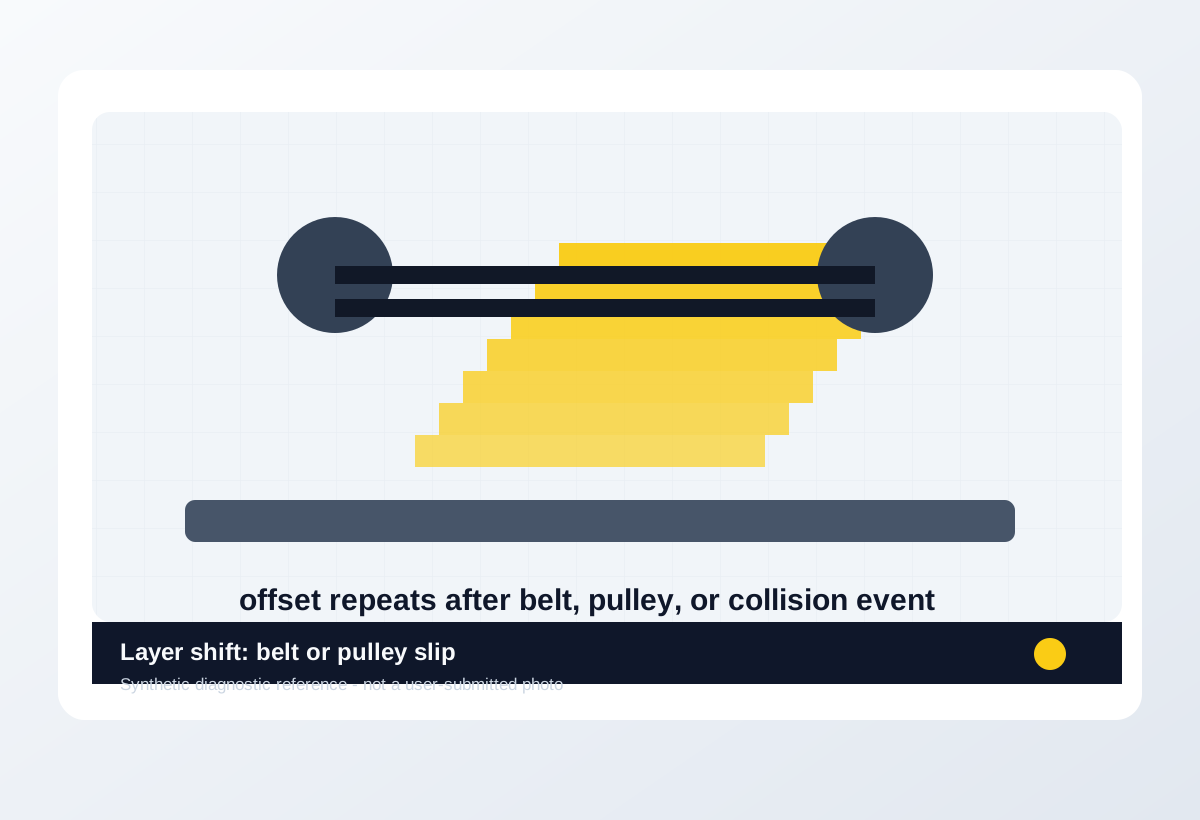
Original synthetic diagnostic reference plus licensed look-alike references; confirm with the test or log evidence below.
- The entire print jumps sideways at one height.
- Layers above the shift remain parallel to the shifted position.
- Failure may happen after a collision, fast infill, cable snag, or loose pulley.
- Ringing/ghosting is repeated ripples, not a single layer jump.
- Warping lifts corners but does not shift the whole coordinate system.
- Under-extrusion creates gaps without moving the entire layer.
- Collision with curled part
- Loose pulley grub screw
- Belt too loose or too tight
- Cable drag
- Excessive acceleration
- CoreXY belt path error
- Axis direction of the jump.
- Whether it repeats at the same height.
- Collision scars or lifted edges near the shift.
- Belt/pulley/cable path if visible.
- Exact belt tension
- Pulley screw torque
- Stepper current
- Whether acceleration is too high
Original visual references
Synthetic examples for fast pattern matching.
These are Print Fixes synthetic diagnostic references, not user-submitted photos. Use them to compare shape and location, then confirm with the test or log evidence on this page.
Licensed reference photos
Compare against real-world photos before changing settings.
These are externally licensed reference photos, not vendor images or scraped forum posts. Use them as pattern checks, then confirm with the small test model on this page.


Before / after
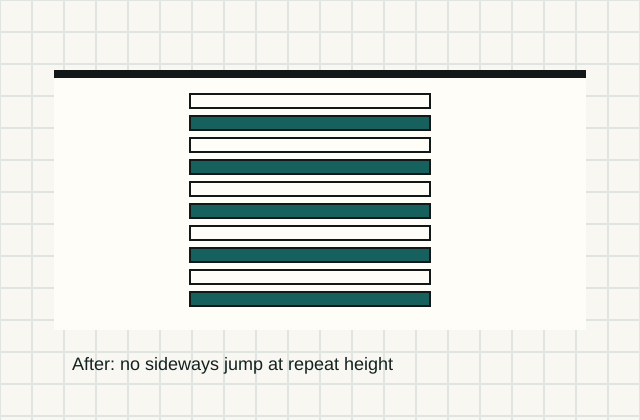
Compare one small test, not a whole print.
Use the same small test before and after the change so the comparison means something.
Download a quick test
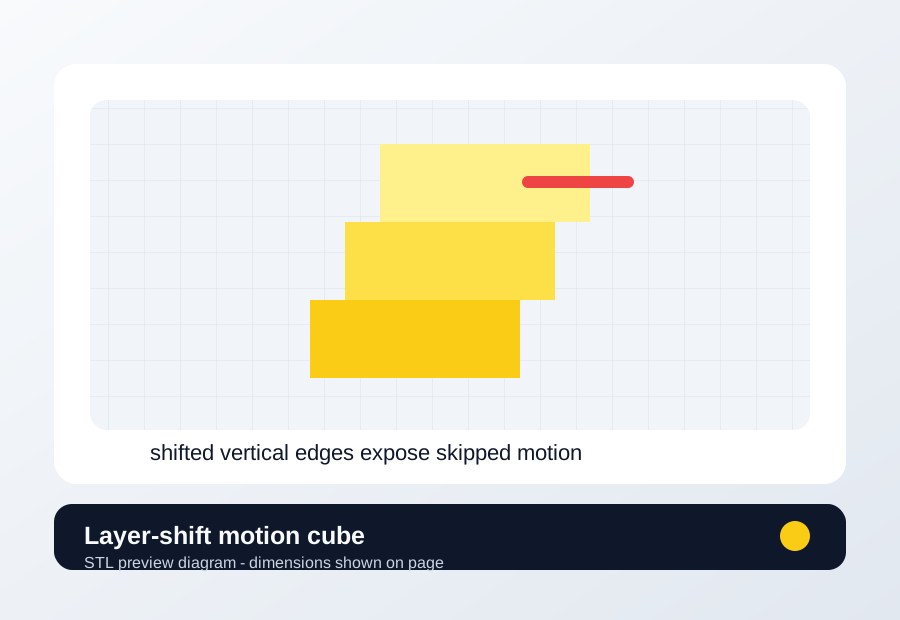
Layer-shift motion cube
Repeat the same height after belt, pulley, cable, or acceleration checks.
- File
- STL
- Typical time
- 15-25 min
- Material
- PLA for fast motion baseline unless the original material causes collision/warping.
- Dimensions
- 30 x 30 x 35 mm.
- Footprint
- 30 x 30 mm
- Height
- 35 mm
- Layer height
- 0.20 mm unless the page says first-layer only
- Infill
- 10-15%
- Walls
- 2
- Supports
- Off
- Speed
- Use current profile for baseline, then change only the proven variable
- Same slicer profile except speed/accel when testing
- Same bed adhesion setup
- Same failed height/bed area if possible
- Same material
- Use the acceleration and speed that failed if it is safe.
- Keep belts, pulleys, and cable routing unchanged between tests.
- Stop if you hear grinding or the toolhead collides.
Recommended Checks
0/4 doneVerification
- The same model reaches the previous failure height without a lateral jump.
- Belts track cleanly and pulleys stay fixed after the test.
- No new impact marks, skipped-step sounds, or cable snags appear during fast moves.
Field guide
Follow the branch that matches your print
Shift starts after a curled corner or nozzle hit
- Likely cause
- Collision caused skipped steps.
- First test
- Inspect failed part for impact marks and reprint the same height section slower.
- Change only this
- Remove collision cause: adhesion/warping/support clearance.
- Verify with
- Same height prints without impact or jump.
- Stop when
- Nozzle clears the part and shift does not repeat.
Shift direction matches one axis and belt/pulley can slip
- Likely cause
- Loose pulley grub screw or belt drive slip.
- First test
- Power off and mark pulley/shaft, then inspect screws and belt teeth.
- Change only this
- Secure pulley or correct belt engagement.
- Verify with
- Motion cube repeats without axis jump.
- Stop when
- Pulley mark no longer moves independently.
Edges are wavy and shift appears during fast moves
- Likely cause
- Belt tension or acceleration is beyond reliable motion.
- First test
- Print layer-shift cube with acceleration reduced 20-30%.
- Change only this
- Acceleration/speed for one repeat.
- Verify with
- Same cube completes aligned.
- Stop when
- Lower motion fixes shift without large quality loss.
Shift happens near the same X/Y travel area
- Likely cause
- Cable drag, snag, spool pull, or obstruction.
- First test
- Move axes by hand/power-off through full range and watch cables/spool path.
- Change only this
- Cable routing or spool drag only.
- Verify with
- Full travel is smooth and test cube no longer shifts.
- Stop when
- No snag is felt through the full path.
CoreXY shifts diagonally or after belt work
- Likely cause
- CoreXY belt path, crossed belt, pulley alignment, or gantry racking issue.
- First test
- Inspect belt path against printer docs and run slow square motion test.
- Change only this
- Belt path/alignment before slicer speed.
- Verify with
- Square motion test and cube stay orthogonal.
- Stop when
- Diagonal shift disappears with correct belt path.
Concrete Parameter Range
| Setting | Start | Range | Change when | Stop when | Too far looks like |
|---|---|---|---|---|---|
| Acceleration repeat test | Current profile | Reduce 20-30% for one repeat | Shift happens during fast infill/travel | Same section completes aligned | Too low hides the issue but costs print time; restore gradually after hardware passes. |
| Travel/print speed repeat | Current profile | Reduce 15-25% for one repeat | Shift correlates with high-speed moves | Motion cube stays aligned | Too slow is not the root fix if pulley or belt is loose. |
| Belt tension | Printer maker baseline | Small mechanical adjustment only; keep both sides balanced | Belt is visibly slack, twangs unevenly, or skips teeth | Motion is smooth with no binding or tooth skip | Too tight increases motor load, ringing, and bearing wear. |
| Pulley/grub screw | Known-good mechanical state | Seat on shaft flat where applicable; tighten to maker spec | Pulley mark moves against shaft | Pulley and shaft marks stay aligned after motion test | Over-tightening can damage screws or shaft. |
| Cable/spool drag | Full travel clear | Reroute until no tug through full X/Y/Z range | Shift occurs near one side or at tall heights | Manual travel and print repeat are smooth | Over-constraining cable can create a new snag point. |
Material / Machine Differences
Wrong Turns
Stop tuning when
Do not keep chasing perfection after the signal is clear.
- The same motion cube completes aligned twice.
- Pulley marks stay aligned after a repeat test.
- Full travel path is smooth with no cable tug.
- Restoring speed gradually does not bring the shift back.
Common setups
Jump to the branch that matches your machine or material
Copy before changing more settings
Layer-shift diagnostic brief
Fill this out after the first test so the next branch is based on evidence, not memory. The useful case is the one where only one variable changed.
Printer:
Slicer:
Firmware:
Material:
Nozzle size/material:
Bed surface:
Exact symptom:
Recent change:
First test run:
One change tested:
Result:
Next branch:Still not matching?
Jump to the next likely diagnosis
Problem Pattern
Layer shift usually has a sharp step where the whole print moves in X or Y. A single repeatable height can mean collision or cable snag; random shifts point more toward loose motion hardware or missed steps.
Likely Causes
- Loose pulley or grub screw lets the motor shaft turn without moving the belt reliably.
- Belt tension is too loose, too tight, or uneven across the motion system.
- The nozzle hits curled plastic, infill, a loose print, or a clip on the build plate.
- Acceleration, jerk, or speed settings exceed what the printer can move reliably.
Print Context
- Applies to
- Cartesian and CoreXY FDM printers, bedslingers, enclosed printers
- Best first move
- Inspect mechanics and collision signs before changing slicer quality settings.
- Do not start with
- Flow, temperature, or retraction changes unless the shift came from curled plastic impact.
After the test
Use the result, do not keep changing random settings.
If one check clearly changes the print, repeat that exact test once before moving on. If nothing changes, switch diagnosis instead of stacking more slicer edits.
Only after the evidence points here
Parts and supplies for the proven branch
Motion maintenance kit
Repeat the small motion cube after checking collision marks, pulley grub screws, belt path, and cable drag.
- Buy signal
- The shift repeats at the same axis/load after collision and acceleration are ruled out.
- Skip if
- The shift disappears after lowering acceleration or removing a part collision.
- Save evidence
- Shift height photo, belt/pulley photo, acceleration value, and whether the repeat test moved the failure.
Buy maintenance parts only when the motion fault repeats at the same load or height.
- Belts matching printer width/tooth pitch
- Pulley grub screws and idlers for your motion system
- Lubricant recommended for your rail/rod type
- Belts before checking a loose pulley
- Generic lubricant on parts that should stay dry
Klipper host and USB stability gear
Save klippy.log, repeat the failing section with reduced load, and compare host/USB evidence before buying anything.
- Buy signal
- The same log path repeats as USB reset, host load, power sag, or timing failure after a controlled repeat.
- Skip if
- The exact error points to heater, thermistor, or printer.cfg syntax instead.
- Save evidence
- Exact Klipper error text, klippy.log timestamp, host model, power supply, USB cable, and webcam/timelapse state.
Host upgrades are for repeatable timing or communication evidence, not every MCU shutdown.
- Reliable host power supply
- Short shielded USB cable
- Ferrite or cable routing only when EMI is plausible
- Host upgrade only when CPU/load evidence repeats
- A new board for a heater or config error
- Replacing the host before saving the log
Print Fixes may earn from qualifying purchases when commerce links are configured. Diagnostic steps stay independent: buy only when the failure evidence points to the part.
Warnings
- Do not keep retrying a shift that crashes the nozzle into the print; it can damage the hotend or bed.
- Tightening belts blindly can create binding and motor heat.
- CoreXY belt paths are easy to misroute; compare against the printer's official path before adjusting.
- A print that clearly shows layer shift, especially if the same failure repeats.
- You want one next move instead of five profile edits.
- The printer is showing a firmware, heater, or electrical safety warning.
- You are copying numbers from a different printer as final values.
More traps to avoid
- Changing several slicer settings at once and losing the actual cause.
- Ignoring filament condition or bed cleanliness while tuning advanced values.
- Keeping one global profile for different materials, brands, colors, and nozzle sizes.
Bench Note
Page: 3D Print Layer Shift Fix
Printer / firmware:
Slicer profile:
Filament brand and material:
Nozzle size:
Bed surface:
Recent changes:
First check run:
One change tested:
Result:
FAQ
Can slicer settings cause layer shift?
Yes, high acceleration or travel speed can expose weak mechanics, but inspect belts, pulleys, and collisions first.
Why does the shift happen at the same height?
A curled feature, cable position, or geometry collision may repeat at that height.
Should I replace belts?
Only if they are damaged, slipping, contaminated, or cannot hold reasonable tension after pulley checks.