Calibration
OrcaSlicer Pressure Advance Calibration
OrcaSlicer Pressure Advance Calibration checks whether the defect follows starts, stops, seams, pressure, or flow. Move the seam first, then tune only the proven variable.
Independent third-party notes. Verify firmware, heater, electrical, and vendor-specific work against official documentation for your exact printer.
Quick Readout
OrcaSlicer Pressure Advance Calibration checks whether the defect follows starts, stops, seams, pressure, or flow. Move the seam first, then tune only the proven variable.
Pick what you see
Pick the OrcaSlicer Pressure Advance Calibration branch
Choose the visible evidence or log clue that matches first. The card below keeps the next move to one test and one variable.
Blobs line up vertically or move when seam placement changes.
- Likely cause
- Seam placement, restart, pressure advance, or wipe/coast.
- First test
- Force seam to one corner and print the seam tower.
- Change only this
- Change only seam placement first.
- Parameter range
- Aligned/rear/nearest as one controlled change
- Stop when
- The blob follows or leaves the seam.
- Verify with
- Seam tower with visible corner.
Pick the exact path
Most failed fixes go wrong when they start from the wrong branch.
Use this when the failure appears on OrcaSlicer or the closest matching setup.
- First test
- Force seam to one corner and print the seam tower.
- Change only this
- Change only seam placement first.
- Stop when
- The repeat test clearly improves or points to a different branch.
Use this if the symptom started after a nozzle, spool, plate, slicer, firmware, or maintenance change.
- First test
- Restore the last known-good context or isolate only the recent change with one small repeat test.
- Change only this
- Undo or isolate the recent change; do not retune the whole profile.
- Stop when
- The repeat test clearly improves or points to a different branch.
Use this when the first proof test looks the same after one safe variable change.
- First test
- Repeat the same test once to rule out a bad slice or one-off print.
- Change only this
- Switch branch instead of stacking another setting.
- Stop when
- The repeat test clearly improves or points to a different branch.
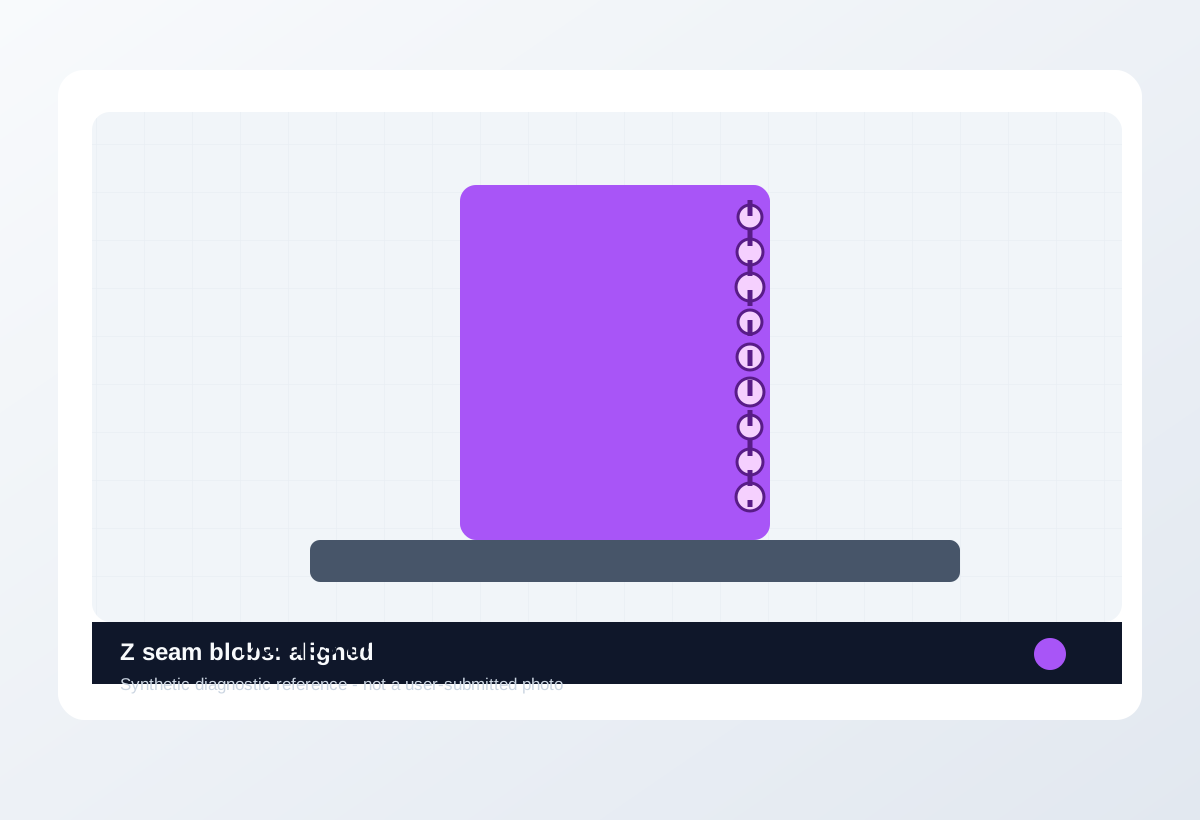
Visual diagnosis
Match the visible pattern before changing settings.
Synthetic diagnostic reference or structured visual guide; confirm with the page test before treating it as proof.
- OrcaSlicer Pressure Advance Calibration repeats on the same printer, material, or print condition.
- The visible pattern changes when one branch variable changes.
- The symptom can be reproduced with a small test instead of a full model.
- Fixing a dirty plate, clogged nozzle, slipping belt, or wet spool with calibration numbers.
- Using benchmark values without a verification print.
- Changing multiple calibration variables in the same run.
- Random moisture blobs
- Over-extrusion everywhere
- Nozzle buildup not tied to seam placement
- Where the defect starts and whether it repeats at the same location.
- Whether the texture is smooth, rough, lifted, thin, blobby, or shifted.
- What changed recently: material, nozzle, plate, firmware, slicer, or printer maintenance.
- The exact slicer value that caused it.
- Whether the spool is dry, the nozzle is worn, or the config is correct.
- That a purchase is needed before the same small test is repeated.
Original visual references
Synthetic examples for fast pattern matching.
These are Print Fixes synthetic diagnostic references, not user-submitted photos. Use them to compare shape and location, then confirm with the test or log evidence on this page.
Download a quick test
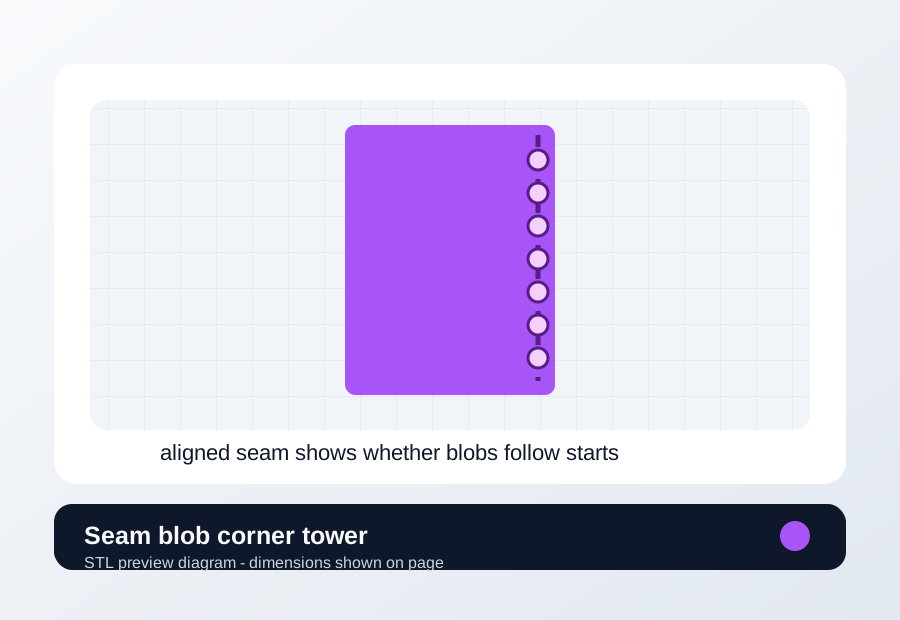
Seam blob corner tower
Use when the defect may follow seam placement, restart pressure, wipe/coast, or pressure advance.
- File
- STL
- Typical time
- 12-18 min
- Material
- Same material that showed blobs
- Dimensions
- 28 x 28 x 45 mm
- Footprint
- 28 x 28 mm
- Height
- 45 mm
- Layer height
- 0.20 mm unless the page says first-layer only
- Infill
- 10-15%
- Walls
- 2
- Supports
- Off
- Speed
- Use current profile for baseline, then change only the proven variable
- Material and spool
- Nozzle size
- Bed surface
- Every slicer value except the one variable being tested
- Force aligned or rear seam
- Keep pressure advance unchanged first
- Do not tune retraction and seam together
Recommended Checks
0/4 doneVerification
- Repeat the same test model or the same problem area after the change.
- Compare before and after photos, print time, surface quality, and failure location.
- Keep the previous profile until the new value passes at least two similar prints.
- For firmware or heater-related issues, confirm logs stay clean after a safe heat or motion test.
Field guide
Follow the branch that matches your print
Blobs line up vertically or move when seam placement changes.
- Likely cause
- Seam placement, restart, pressure advance, or wipe/coast.
- First test
- Force seam to one corner and print the seam tower.
- Change only this
- Change only seam placement first.
- Verify with
- Seam tower with visible corner.
- Stop when
- The blob follows or leaves the seam.
Blobs appear in random locations instead of one seam line.
- Likely cause
- Temperature, moisture, nozzle buildup, or flow instability.
- First test
- Print the same test after a 5 C temperature step.
- Change only this
- Change only temperature or spool condition.
- Verify with
- Random blob count and texture.
- Stop when
- Random defects reduce without seam tuning.
Corners bulge or start/stop areas swell after direction changes.
- Likely cause
- Pressure advance, flow, acceleration, or restart behavior.
- First test
- Run a pressure advance or corner tower with current profile.
- Change only this
- Change only pressure advance/linear advance.
- Verify with
- Corner shape at the same speed.
- Stop when
- Corners clean up without gaps after restart.
Surface marks appear after travel or wipe moves.
- Likely cause
- Wipe, coast, travel, or nozzle buildup.
- First test
- Disable or isolate wipe/coast for one small test.
- Change only this
- Change only one wipe/coast setting.
- Verify with
- Same seam tower surface.
- Stop when
- Marks disappear without new under-extrusion.
Everything looks slightly overfilled, not just the seam.
- Likely cause
- Flow ratio or extrusion multiplier is high.
- First test
- Print the single-wall flow box.
- Change only this
- Change only flow ratio after wall measurement.
- Verify with
- Measured wall and top surface.
- Stop when
- Surface improves without gaps.
Concrete Parameter Range
| Setting | Start | Range | Change when | Stop when | Too far looks like |
|---|---|---|---|---|---|
| Seam placement | Current profile | Aligned/rear/nearest as one controlled change | Defect may follow starts/stops | Blob moves with seam or leaves the visible face | Random blobs remain because seam was not the cause |
| Pressure advance | Current calibrated value | Small slicer/firmware test increments | Corners bulge or restart pressure is visible | Corners clean without gaps | Under-extrusion after travel or weak starts |
| Restart / extra prime | Current profile | Tiny negative/positive steps only after seam proof | Seam dots remain after placement proof | Start marks shrink without gaps | Gaps after seam or missed extrusion |
| Temperature | Current material profile | -5 C steps for ooze | Random blobs or ooze remain | Surface cleans without weak layers | Dull, weak, or under-extruded walls |
Material / Machine Differences
Wrong Turns
Stop tuning when
Do not keep chasing perfection after the signal is clear.
- The same small test improves after one documented change.
- The symptom turns into a different failure family; switch branches instead of stacking edits.
- A safety, heater, wiring, or firmware warning appears; stop printing and use the safe diagnostic path.
Common setups
Jump to the branch that matches your machine or material
Copy before changing more settings
OrcaSlicer Pressure Advance Calibration diagnostic brief
Fill this out after the first test so the next branch is based on evidence, not memory. The useful case is the one where only one variable changed.
Page: OrcaSlicer Pressure Advance Calibration
Printer:
Slicer:
Firmware:
Material / brand / color:
Nozzle size / material:
Bed surface:
Exact symptom or error text:
Recent change:
First test run:
One variable changed:
Result:
Next branch:Still not matching?
Jump to the next likely diagnosis
Problem Pattern
OrcaSlicer Pressure Advance Calibration is useful after the printer and filament are basically healthy. It keeps one calibration variable isolated so you can trust the before-and-after result.
Likely Causes
- The printer or filament changed after the last calibration value was saved.
- A profile value was copied across nozzle sizes, materials, or printers.
- Mechanical, extrusion, or drying problems are being mistaken for calibration errors.
- The calibration coupon improved, but the real part was never verified.
Print Context
- Page type
- slicer calibration
- Best first move
- Reproduce the issue on a small test, then change one variable.
After the test
Use the result, do not keep changing random settings.
If one check clearly changes the print, repeat that exact test once before moving on. If nothing changes, switch diagnosis instead of stacking more slicer edits.
Only after the evidence points here
Parts and supplies for the proven branch
Filament dryer or dry box
Print the same small stringing or surface test before and after a controlled dry cycle, without changing slicer values.
- Buy signal
- Popping, steam marks, rough surface, weak layers, or fine hairing improves on the same spool after drying.
- Skip if
- The spool prints clean after a simple temperature step or seam move.
- Save evidence
- Before/after photo, material, drying temperature/time, room humidity if known, and unchanged slicer settings.
Drying is a purchase only when moisture signs survive one controlled slicer change.
- Adjustable temperature
- Fan circulation
- Spool clearance for the material you use
- Print-while-drying path if TPU/PETG stays loaded
- Passive storage box for a spool that is already wet
- A dryer purchase when a 5 C temperature step fixed the stringing
Nozzle and cleaning kit
Run a hot extrusion or cold-pull check, then print a small flow wall with the same filament and temperature.
- Buy signal
- Extrusion curls, skips, or stays inconsistent after cleaning, or a brass nozzle has seen abrasive filament.
- Skip if
- The problem is only first-layer Z, bed mesh, or wet filament.
- Save evidence
- Free-air extrusion photo, cold-pull result, nozzle size/material, filament type, and whether flow changed after cleaning.
Replace the nozzle only after the extrusion path test makes the blockage or wear visible.
- Correct nozzle thread and length
- Brass for normal PLA/PETG
- Hardened steel or similar only for abrasive filaments
- Cleaning needles sized for the nozzle
- Hardened nozzles as a first-layer fix
- Random nozzle packs that do not match the hotend
Print Fixes may earn from qualifying purchases when commerce links are configured. Diagnostic steps stay independent: buy only when the failure evidence points to the part.
Warnings
- Calibration values are not universal across materials, nozzles, or hotends.
- Do not tune pressure, flow, temperature, and speed in one pass.
- A good calibration coupon can still fail on the actual part geometry.
- Changing OrcaSlicer Pressure Advance calibration with a measurable test instead of trial and error.
- You are saving calibration values by filament, nozzle, and printer.
- Fixing a dirty plate, clogged nozzle, slipping belt, or wet spool with calibration numbers.
- Using benchmark values without a verification print.
More traps to avoid
- Changing several slicer settings at once and losing the actual cause.
- Ignoring filament condition or bed cleanliness while tuning advanced values.
- Keeping one global profile for different materials, brands, colors, and nozzle sizes.
Bench Note
Page: OrcaSlicer Pressure Advance Calibration
Printer / firmware:
Slicer profile:
Filament brand and material:
Nozzle size:
Bed surface:
Recent changes:
Result to compare next:
FAQ
When should I run OrcaSlicer Pressure Advance calibration?
Run it after the printer is mechanically sound and the filament is in reasonable condition, otherwise calibration hides another problem.
How many settings should I change at once?
One. Save the old profile, change one value, and verify on the same test so the result means something.
Where should I record the value?
Store it with printer, filament brand/color, nozzle size, build plate, slicer version, and date.